
Insight Hub · Enterprise BI Platform
User Manual
Version 1.0.0 — Initial Production Release
INTERNAL / CONFIDENTIAL
For Enterprise BI Platform Portal Users
| Document Name | Enterprise BI Platform — User Manual |
|---|---|
| Version | v1.0.0 |
| Release | Initial Production Release |
| Release Date | 18-Aug-2026 |
| Environment | Production |
| Status | Released |
| Audience | Enterprise BI Platform Portal Users |
| Classification | Internal / Confidential |
| Version | Date | Description | Author |
|---|---|---|---|
| v1.0.0 | 18-Aug-2026 | Initial production release of the Enterprise BI Platform User Manual. | BI Platform Team |
The Enterprise BI Platform is a shared, production-grade foundation for enterprise data, analytics, and business intelligence. It brings together governed enterprise data with Apache Superset — the platform's underlying visualization engine — behind a single, secure, organization-branded web application: the BI Portal ("Insight Hub").
The BI Portal is the web application you use to sign in, find the dashboards you have been given access to, and view them. You never interact with Superset directly — the Portal owns the sign-in experience, the catalogue of available dashboards, and the screen you view a dashboard on.
Version 1.0.0 is the platform's initial production release. Time Tracking Intelligence is the first production business use case delivered on the platform, and the release establishes the technical foundation — portal, authentication, multi-tenancy, dashboard catalogue — for onboarding further business use cases and client organizations (tenants) over time.
Access to the BI Portal is granted by your organization's administrators. You must have an active organizational (Azure AD) account, and that account must be provisioned in the platform and assigned to at least one tenant/role before you can use it. Simply having a company email address is not sufficient — an administrator must explicitly add your account.
A current version of a modern desktop browser (e.g. Microsoft Edge, Google Chrome) is recommended. A specific supported-browser list is not published in the current release documentation.
Open the BI Portal at your organization's production portal address:
https://insighthub.innodata.com
Bookmark this address once your administrator confirms it. Sign-in always uses your Azure AD organizational account — there is no separate BI Portal username or password to remember.
The BI Portal uses Enterprise Azure AD Single Sign-On (SSO). You authenticate with your organization's own Azure AD sign-in screen — the Portal never asks you for a separate password.
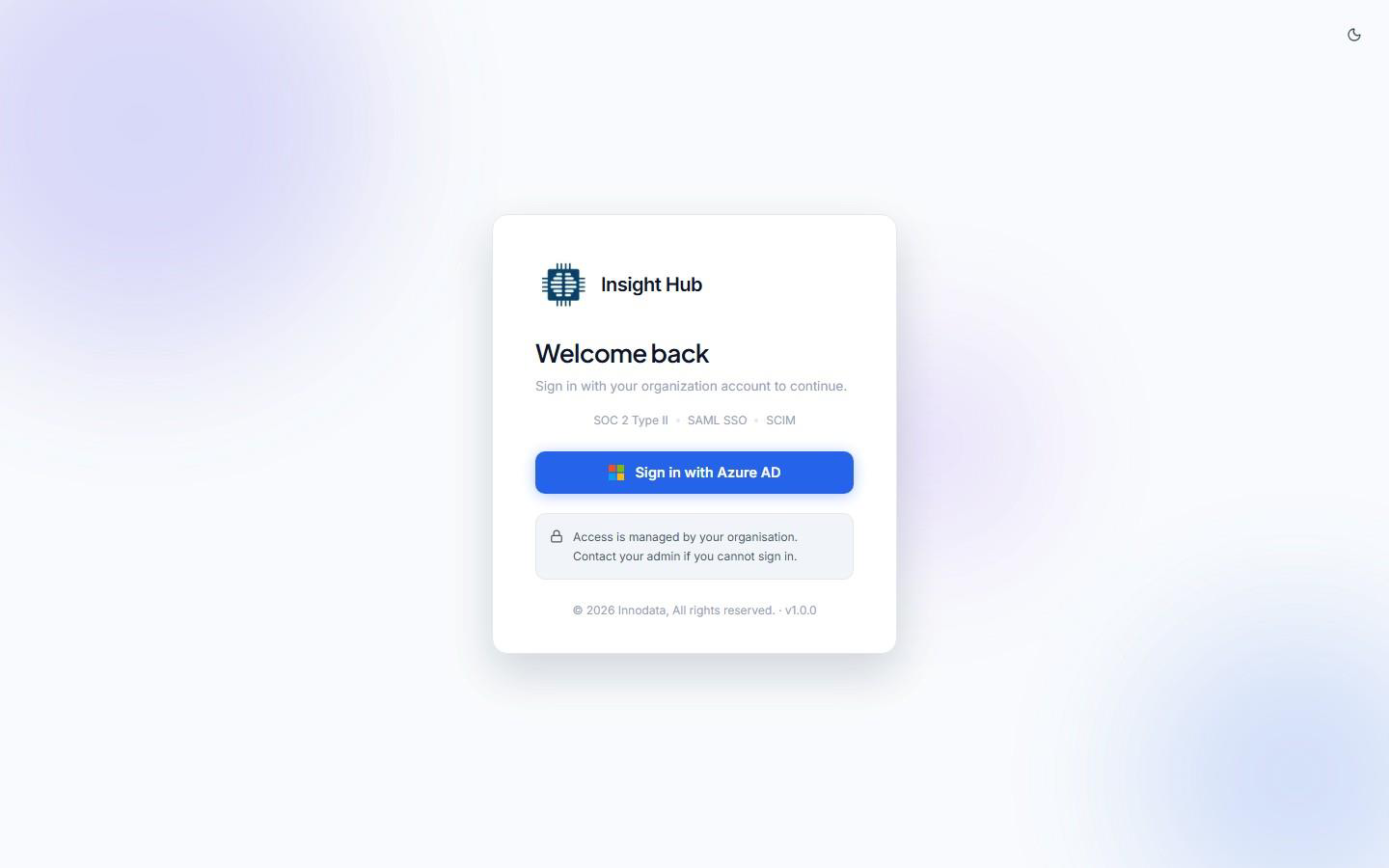
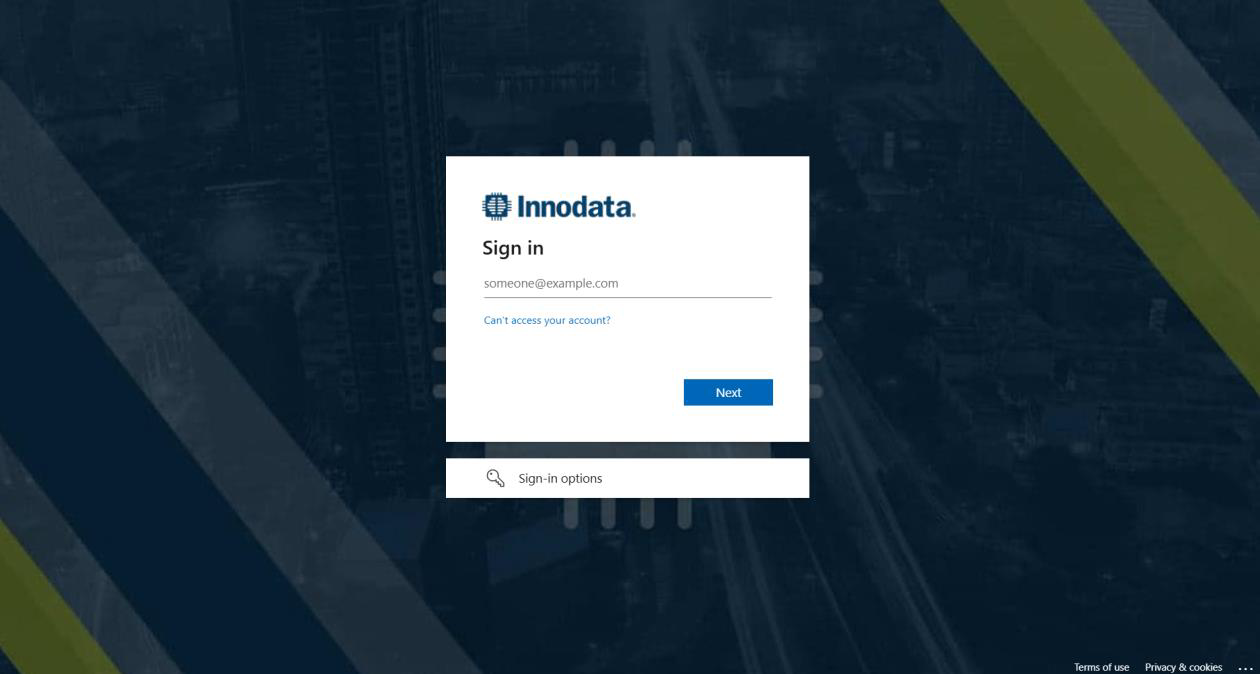
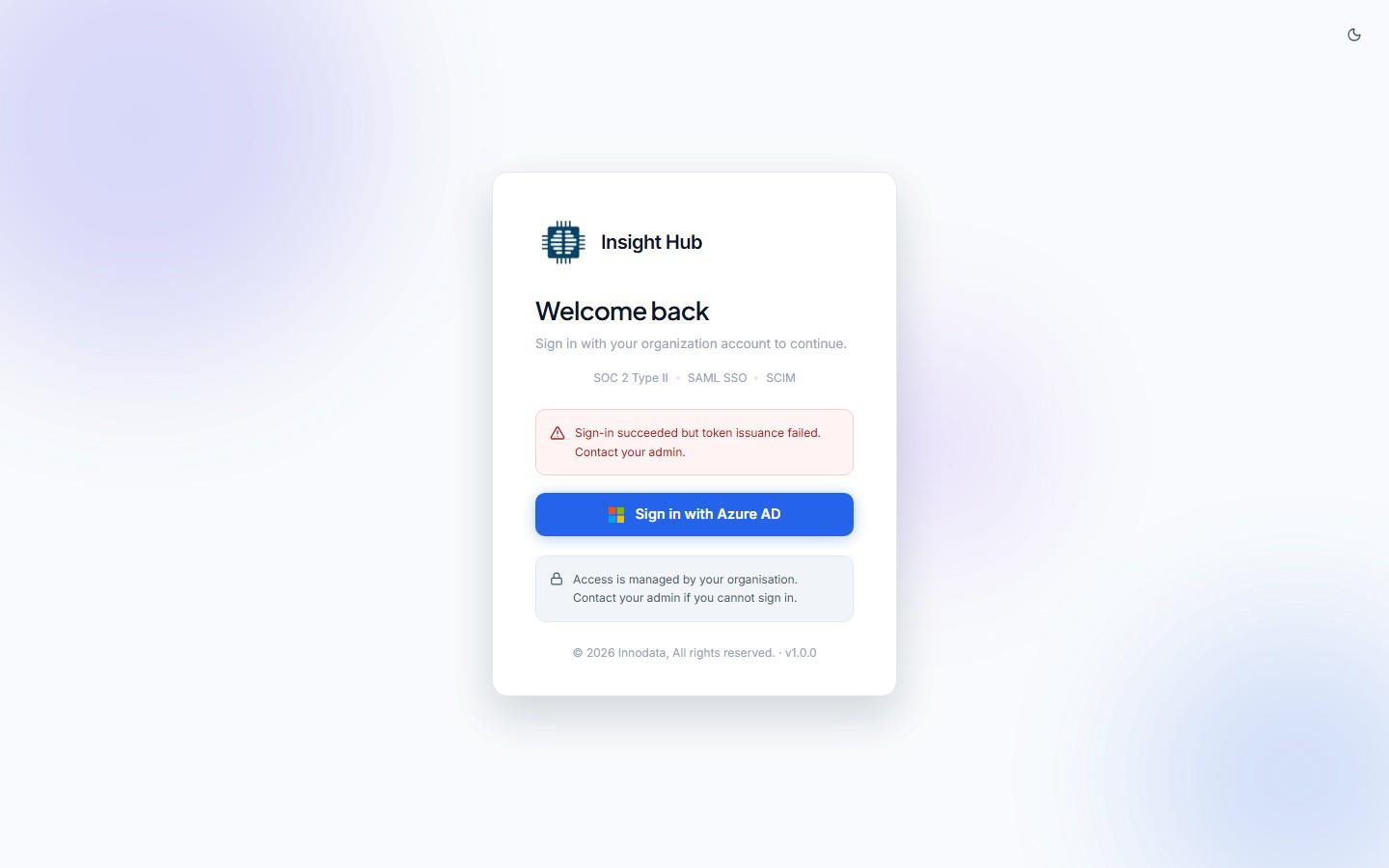
If your account has not yet been provisioned, or your session cannot be established, the Portal returns you to the sign-in screen with a clear error message (Figure 3.3). If you see this, contact your BI Platform administrator — do not attempt to create your own account.
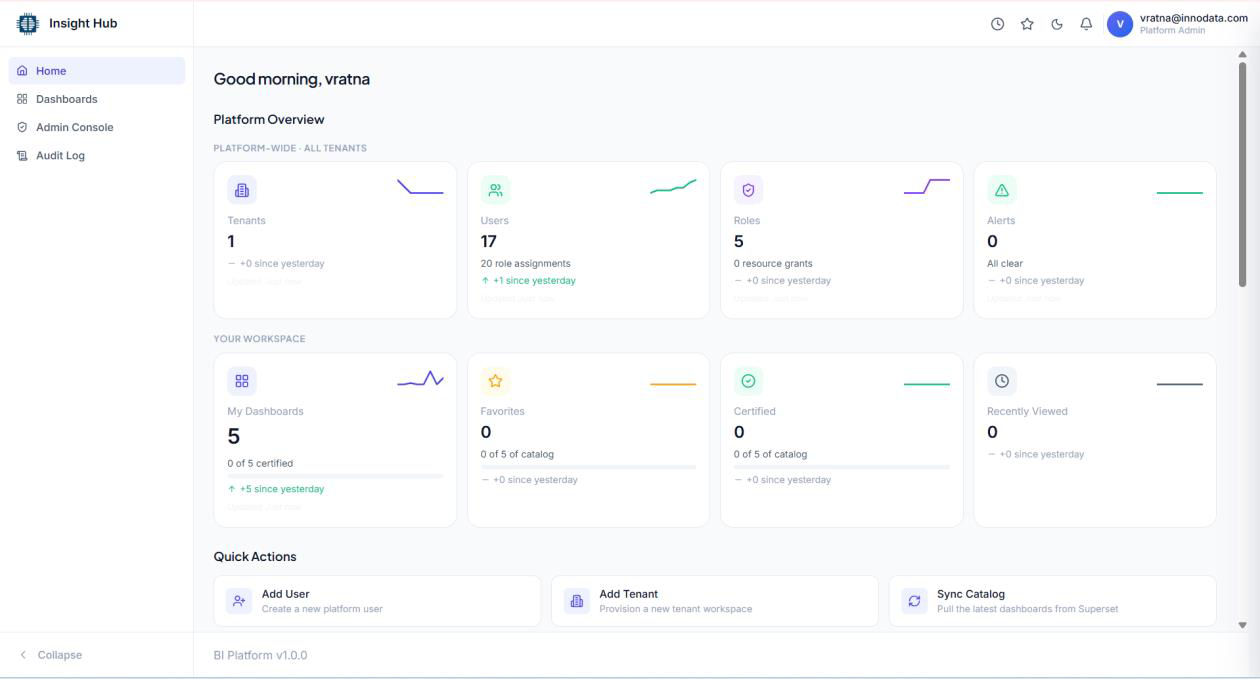
After signing in, you land on the Home page. It gives you a starting point for the rest of the Portal.
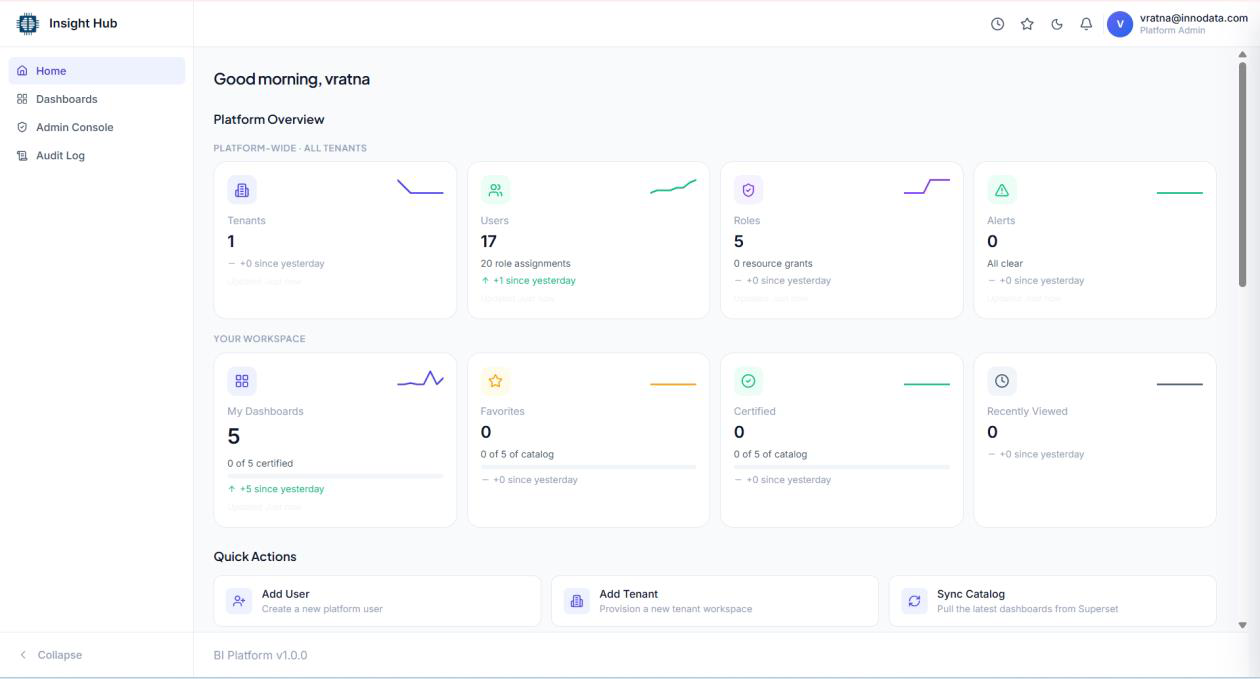
The left-hand navigation panel is your main way of moving around the Portal.
| Item | What it does | Who sees it |
|---|---|---|
| Home | Returns to your personal Home page. | All signed-in users |
| Dashboards | Opens the Dashboard Catalogue (Section 6). | Users with dashboard-viewing permission |
| Admin Console | Administrative screens (users, roles, tenants, etc.). | Administrators only |
| Audit Log | Platform activity history. | Administrators only |
Menu items are shown only if your account has the corresponding permission. If you do not have permission for a given area, its menu item simply does not appear for you — you will not see a placeholder or a locked icon for menu items you cannot use.
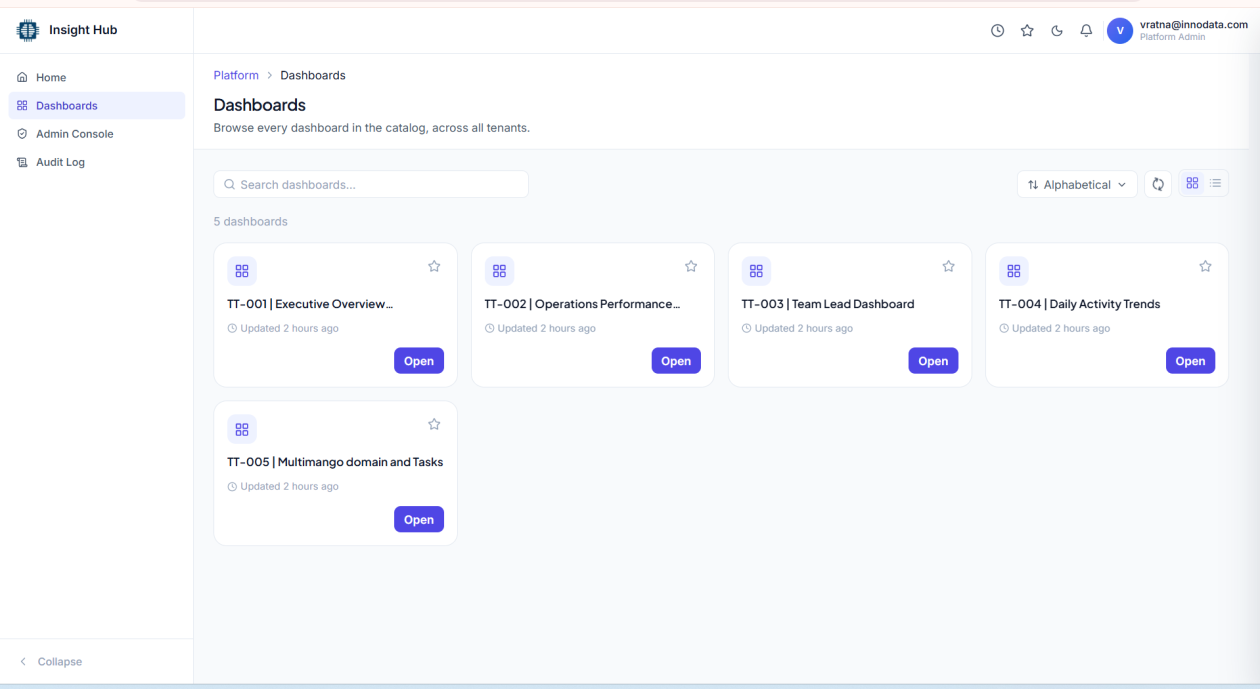
The Dashboard Catalogue is where you find every dashboard your account currently has access to. It is one of the primary capabilities delivered in v1.0.0.
Click Dashboards in the left navigation panel.
When one or more dashboards are available to you, the Catalogue lists them as cards you can browse and click to open. Access to each dashboard is controlled by your assigned role and tenant membership — you will only ever see dashboards you have been explicitly granted.
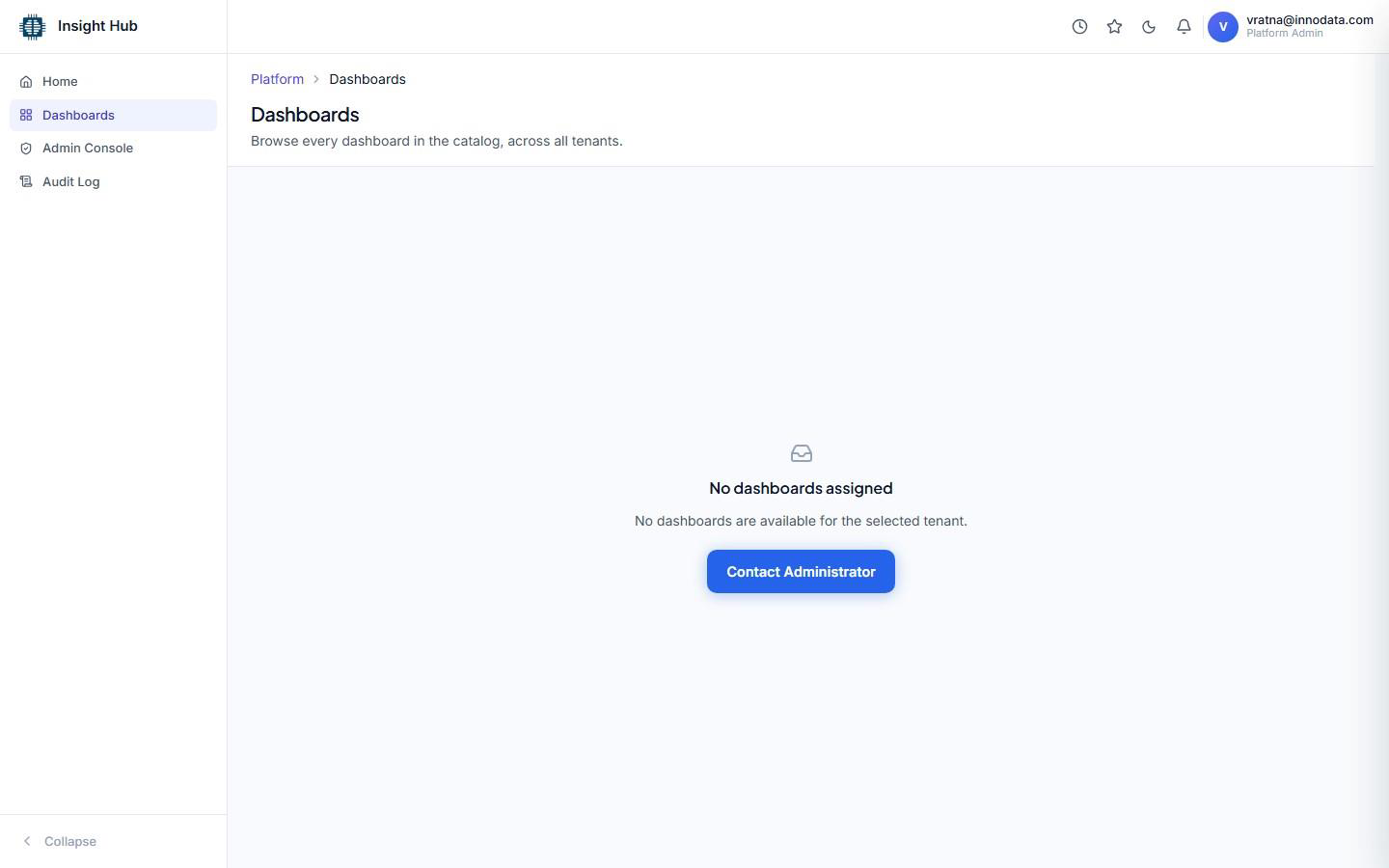
If your account currently has no dashboards assigned — either because none have been granted to you yet, or because none are configured for your tenant — the Catalogue shows an empty state instead, with a "Contact Administrator" action (Figure 6.2).
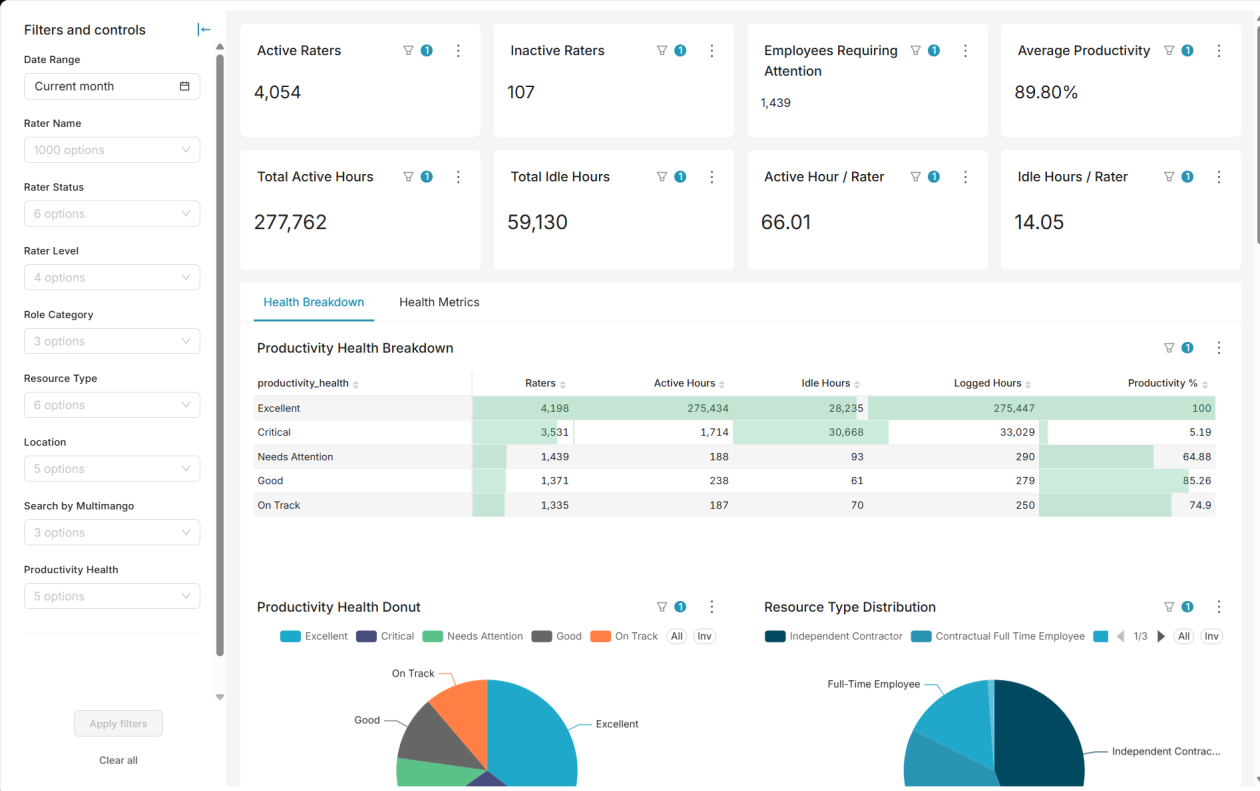
Time Tracking Intelligence is the Enterprise BI Platform's first production business use case. It is delivered as one entry in your Dashboard Catalogue, like any other dashboard.
Open the Dashboard Catalogue (Section 6) and select the Time Tracking Intelligence tile if it appears for your account, then click it to open the dashboard viewer.
The dashboard viewer wraps the actual chart content (rendered by Superset) in a Portal-owned frame that gives you:
The specific charts, tables, KPIs, and filter controls inside the dashboard canvas are defined and rendered by Superset itself — their exact labels depend on how the Time Tracking Intelligence dashboard has been built in Superset for your organization, and are not prescribed by the Portal.
Use the breadcrumb at the top of the dashboard viewer, or click Dashboards in the left navigation panel.
The following actions are available from the Portal's dashboard-viewer action bar:
| Action | What it does |
|---|---|
| Refresh | Reloads the dashboard's data. |
| Share | Copies a link to the dashboard. |
| Favorite | Marks the dashboard as a favorite for quick access from Home. |
| Show/hide filters | Toggles visibility of the dashboard's filter panel. |
| Info | Opens the dashboard's description panel. |
| Focus Mode |
Hides Portal chrome to concentrate on the dashboard. Keyboard
shortcut: F.
|
| Fullscreen |
Expands the dashboard to fill the browser window. Keyboard shortcut:
Shift+F.
|
Filtering, selecting values, sorting tables, and drilling into charts happen inside the embedded dashboard canvas — these interactions are provided by the underlying visualization engine and vary by dashboard, so they are not documented individually here. Use the dashboard's own on-screen controls and tooltips.
If a dashboard fails to load, the viewer shows an error message with a Retry option.
Your available dashboards and portal functions are determined by your assigned access and permissions. Access is managed centrally by your organization's BI Platform administrators — you cannot change your own role or grant yourself access to additional dashboards.
| Role | Description |
|---|---|
| Platform Administrator | Full platform control — user, role, tenant, and catalogue administration. |
| Senior Manager | Can view information of managers and team under their hierarchy. |
| Manager | Can view information of team leads and team under their hierarchy. |
| Team Lead | Can view dashboards for the team under them |
Certain screens (mainly administrative ones) show a plain "Access Denied" message with a short explanation if your account does not have the required permission — for example, "You don't have permission to view user details."
This section walks through two everyday tasks: updating your profile and signing out of the Portal.
Your profile screen lets you update the name and photo shown in the Portal. Your email address is your sign-in identity and cannot be changed here.
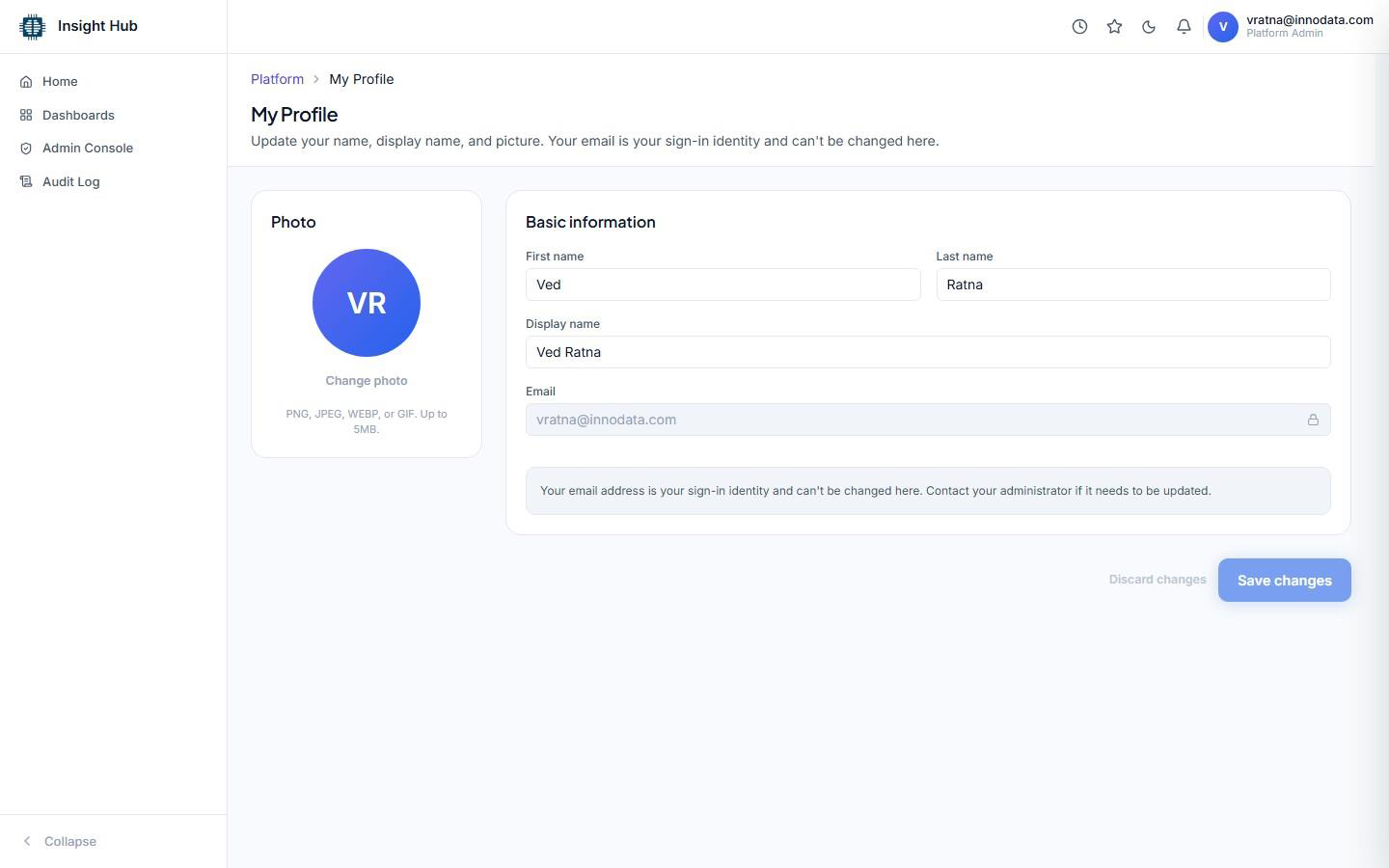
Sign out securely whenever you finish a session, especially on a shared or public device.
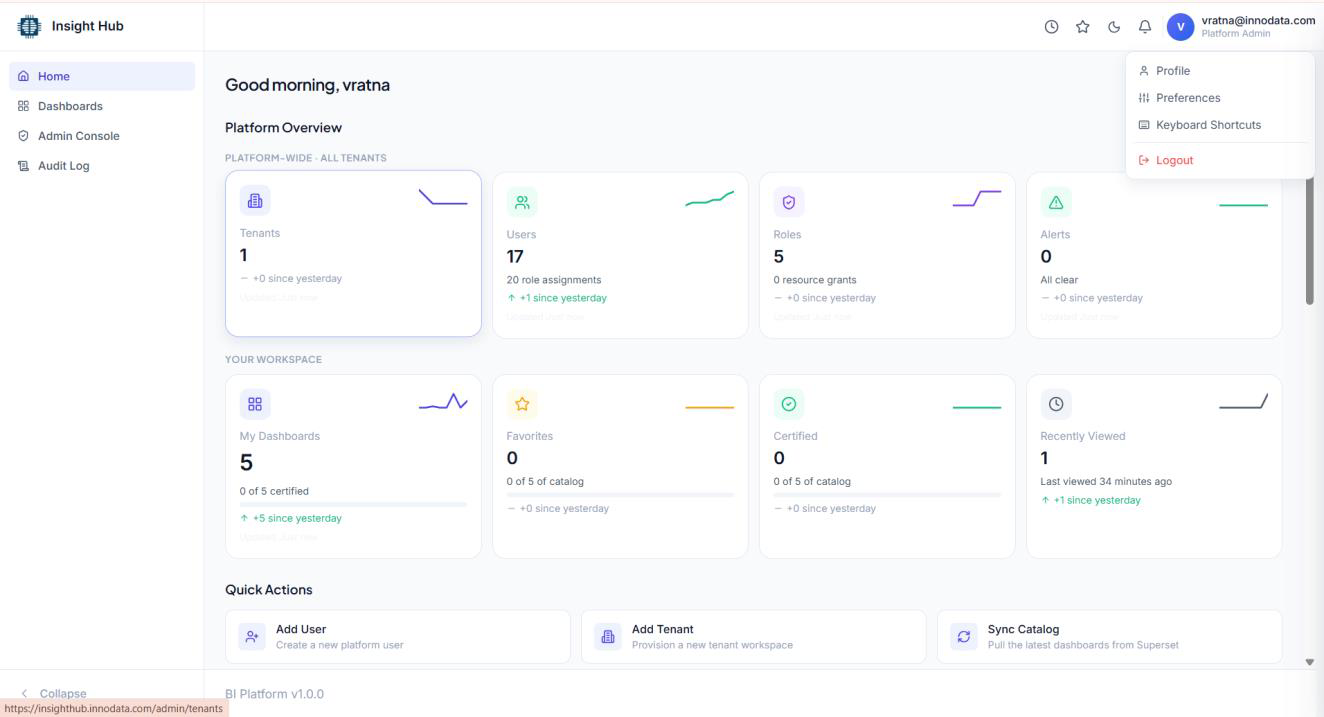
This section covers issues you may encounter as a Portal user. It does not cover technical or administrative diagnostics, which are outside the scope of this manual.
| Issue | Likely cause | What to do |
|---|---|---|
| I can't sign in / I see "User is not provisioned" | Your Azure AD account has not yet been provisioned in the BI Platform. | Contact your BI Platform administrator and ask them to provision and assign your account. See Section 2. |
| Sign-in returns me to the sign-in screen with an error | Your session could not be established, or authentication did not complete successfully. | Retry sign-in. If the error persists, contact your BI Platform administrator. Do not attempt to create your own account. See Section 3. |
| The Dashboard Catalogue is empty | No dashboards have been granted to your account yet, or none are configured for your tenant. | Use the Contact Administrator action shown in the empty state, or reach out directly to your BI Platform administrator. See Section 6. |
| I see "Access Denied" on a screen | Your account does not have the permission required for that area (typically administrative screens). | This is expected if the area is outside your role. Contact your BI Platform administrator if you believe you need access. See Section 9. |
| A dashboard won't load | A temporary connection or rendering issue in the underlying visualization engine. | Use the Retry option shown in the viewer. If the issue continues, contact your BI Platform administrator or Support. See Section 8. |
| A menu item I expect to see is missing | Menu items are shown only when your account has the corresponding permission — this is expected behavior, not an error. | No action needed if the area is outside your role. Contact your administrator if you believe access is missing. See Section 5. |
Open your organization's BI Portal address and sign in with your Azure AD account. See Section 2.
Click "Sign in with Azure AD" on the sign-in screen and complete your organization's authentication. See Section 3.
In the Dashboard Catalogue — click Dashboards in the left navigation panel.
The v1.0.0 release baseline states five dashboards are currently available on the platform. The dashboards visible to you specifically depend on what has been assigned to your account.
Open the Dashboard Catalogue and select it, if it has been assigned to your account. See Section 7.
Your account has not been granted access to it yet. Contact your BI Platform administrator.
Contact the BI Platform support team (Section 14).
Enterprise BI Platform v1.0.0 is the platform's initial production release, delivering the BI Portal, Dashboard Catalogue, Enterprise Azure AD SSO, multi-tenancy, and the underlying data/ETL foundation for Time Tracking Intelligence — the platform's first production business use case.
For full release details, see the official BI Platform Release Notes v1.0.0.
| Channel | Contact |
|---|---|
| Service Desk | [ TO BE PROVIDED ] |
| Escalation (sign-in or access issues) | Your BI Platform administrator |
Contact your BI Platform administrator in the meantime for any sign-in or access issue.
| Azure AD SSO | Single Sign-On using your organization's Microsoft Azure Active Directory account. |
|---|---|
| BI Platform | The overall Enterprise BI Platform product, covering the BI Portal, its backend services, and the underlying data/analytics foundation. |
| BI Portal | The web application ("Insight Hub") users sign in to for dashboard access. |
| Dashboard | A single set of visualizations you can view in the Portal. |
| Dashboard Catalogue | The Portal screen listing every dashboard your account has access to. |
| Role / Permission | The set of actions and data an account is allowed — assigned by administrators, not by the user. |
| Tenant | A logically separated organization/business unit on the platform; your access is scoped to the tenant(s) you belong to. |
| Time Tracking Intelligence | The platform's first production business use case, delivered as a dashboard in the Catalogue. |